Phosphor: retro desk gadget firmware for the Waveshare ESP32-S3 bar display
Phosphor is free, open-source ESP32 desk clock firmware (GPL-3.0) for the Waveshare ESP32-S3-Touch-LCD-3.49, a 640×172 bar display. It adds a clock, weather, internet radio, timers, pixel scenes, three games and four retro looks. You install it from Chrome or Edge over a USB cable.
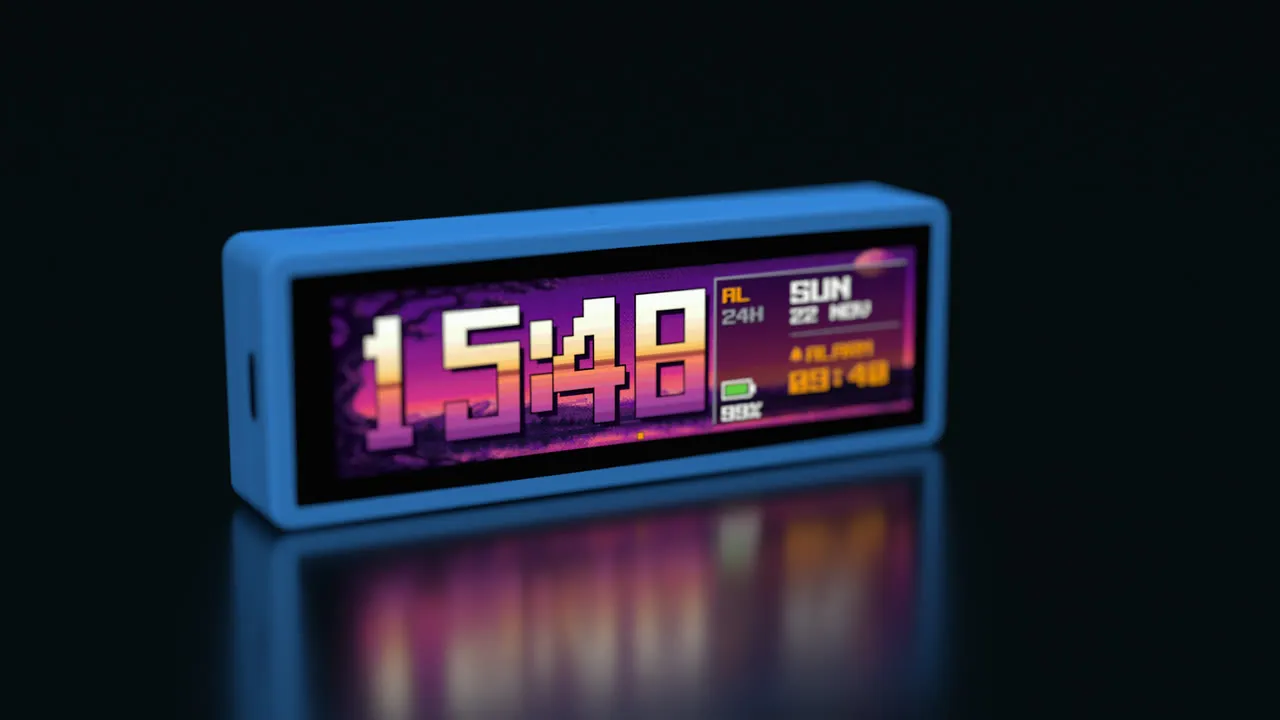
- Install
- From the browser, over USB (Chrome or Edge)
- Price
- Free, open source (GPL-3.0)
- Version
- 2.0.0
Contents 11 sections
- What Phosphor does
- Four looks: VFD, C64, Amiga and 2600
- Internet radio and alarm clock
- Weather and timers
- Pixel scenes to leave running
- Three games: 21, Lighthouse Keeper and Runner
- Small tools and settings on the board
- Install it from your browser
- The hardware: Waveshare ESP32-S3-Touch-LCD-3.49
- Open source and how it is built
- Frequently asked questions
What Phosphor does
Phosphor turns the Waveshare ESP32-S3-Touch-LCD-3.49, a 640×172 bar display, into a retro desk gadget. It is a clock, weather, internet radio, timers, pixel scenes to leave running, three games and a few small tools.
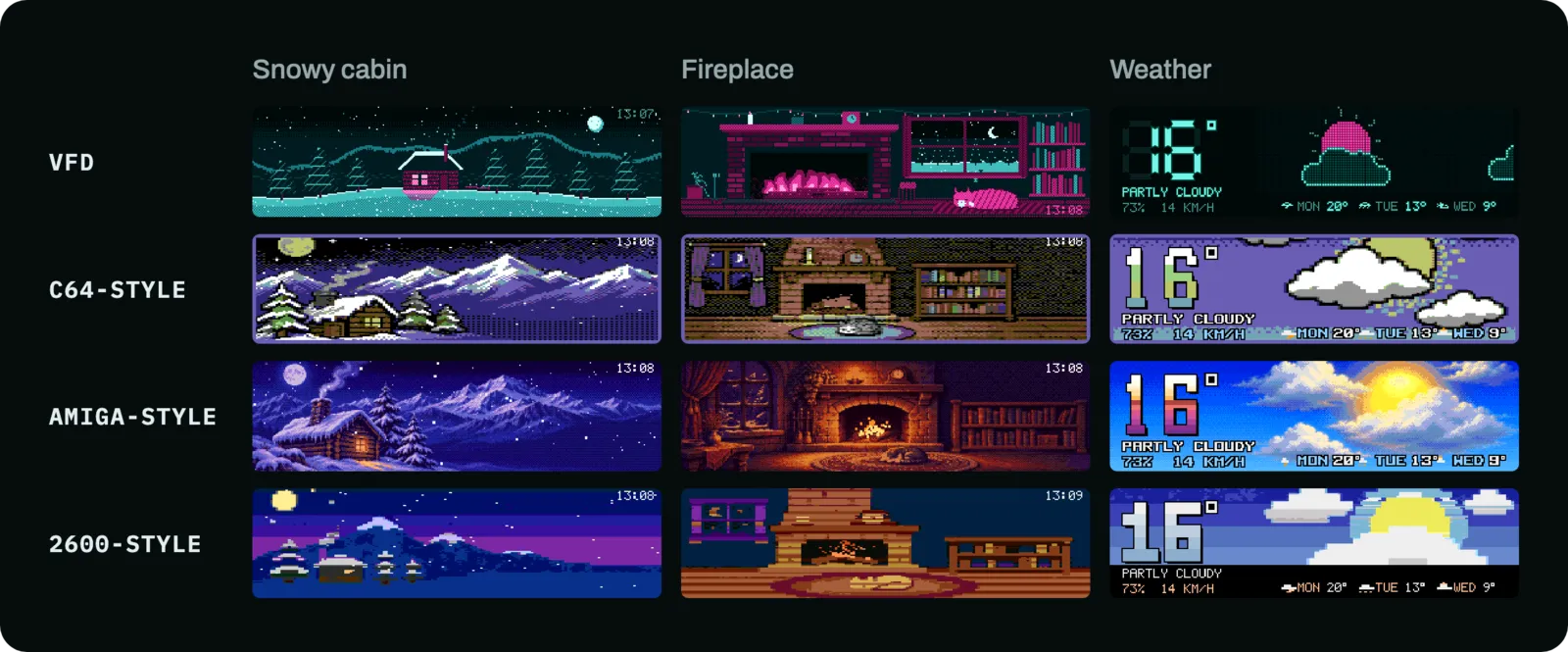
Every page is drawn four times: as an old vacuum-fluorescent display (VFD), and in C64-style, Amiga-style and 2600-style looks. The current version is 2.0.0, under the GPL-3.0 license.
I bought this board to have a display on my desk, then ended up writing a whole piece of software for it. Phosphor is that software. If you want the full story of the hardware, I wrote it up in my Waveshare ESP32-S3-Touch-LCD-3.49 review.
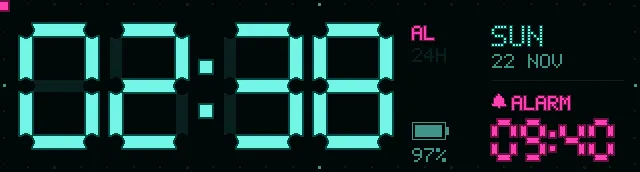
VFD clock
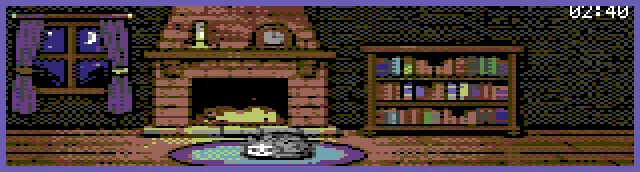
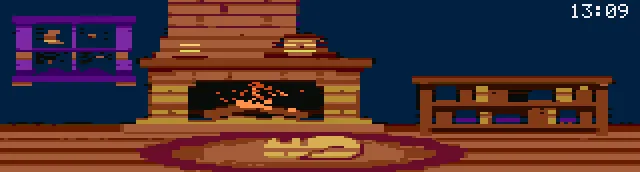
C64-style fireplace
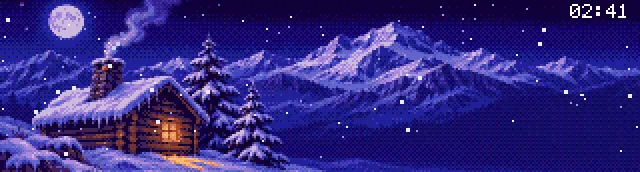
Amiga-style snowy cabin
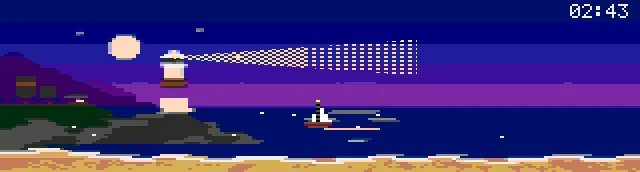
2600-style lighthouse
Four looks: VFD, C64, Amiga and 2600
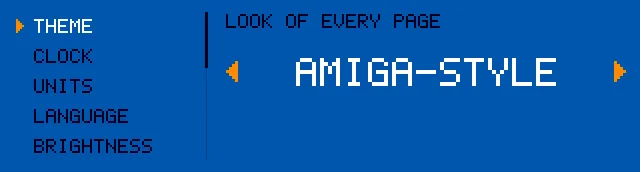
The scenes are redrawn in each machine’s resolution and colors, not just recolored. That means 16 colors on the C64, 32 out of 4096 on the Amiga and 4 per line on the 2600. You change the look in Settings > Theme on the board.
Internet radio and alarm clock
The radio page has up to seven genre buttons. Tap one to play, tap it again for the next station. The dancers and the equalizer move with the music, and you can hold them for another look.
You find stations on the settings page through Radio Browser, or paste your own stream (MP3 and AAC). If a station does not play, use Test on the settings page.
The clock page has big segment digits, the date, the battery level and a 12 or 24 hour display. The alarm wakes you with the radio. Tap the bell to switch it on or off, and tap the alarm hours (+1) or minutes (+5) to set it. So it works as an ESP32 alarm clock that plays your own station.
Weather and timers
The weather page shows now and the next three days for your city, from Open-Meteo (no key). Tap it for the days after.
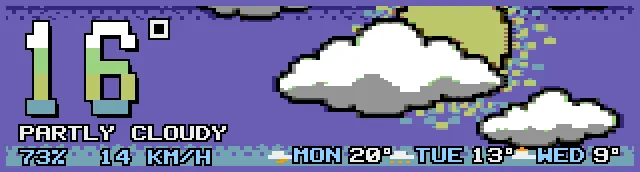
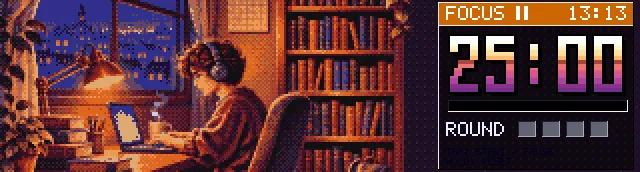
The timer adds or removes 1, 5 or 10 minutes by touch, up to 99, and rings at the end. The focus timer runs Pomodoro rounds in a little study room.
Pixel scenes to leave running
These are the pages meant to be left running on the desk. Most of them react to touch or to the board’s motion sensor.
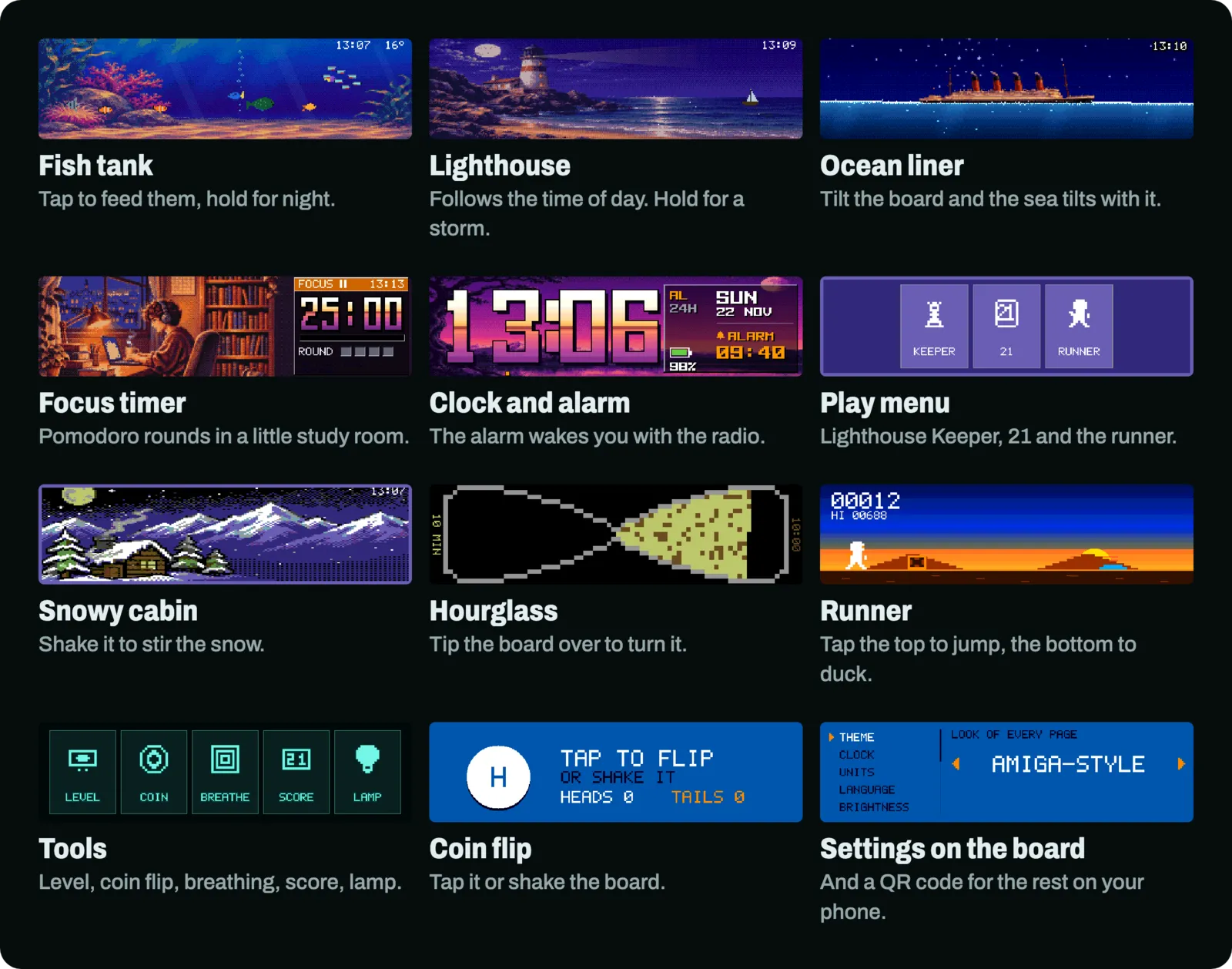
- Fish tank: tap to feed, hold for night. Once a day a rare visitor.
- Snowy cabin: tap or shake to stir the snow, hold for a snow globe. Holiday lights in winter.
- Fireplace: a cat sleeps by the fire. Tap to wake it, tilt the board for a ball of yarn, hold to add a log.
- Lighthouse: follows the time of day. Tap for a big wave, hold for a storm.
- Ship: an ocean liner that tilts with the board. Hold for the fog horn. Now and then a whale.
- Lava lamp (tap for new colors) and an hourglass you turn over by tilting the board.
Three games: 21, Lighthouse Keeper and Runner
21 is blackjack against a cartoon dealer, ten hands a match. You do not have to touch the screen. The board’s motion sensor feels your knuckles on the table: knock once to stand, twice to hit (or tap HIT and STAND).
Lighthouse Keeper is my own game in the style of the 1980s handheld LCD games. Ships head for the rocks in three lanes. Tap a lane to light it and turn the ship away. It has fixed segments with their faint ghosts, Game A and a faster Game B with more ships. Three misses and the night is over.
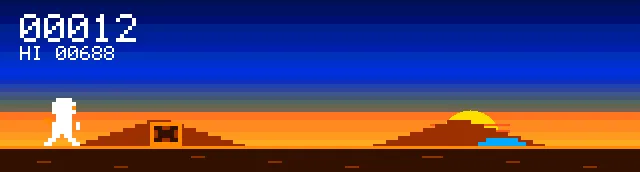
Runner: tap the top of the screen to jump, the bottom to duck. There are archers, bugs, pits and ledges, and the scenery changes every 400 m. High scores are kept on the board.
Small tools and settings on the board
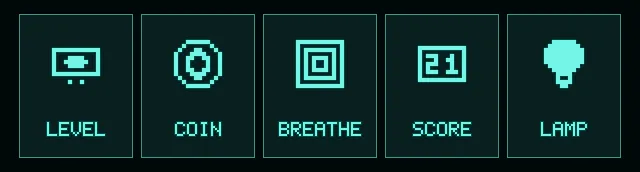
The Tools menu has a spirit level (tap sets zero), a coin flip (tap or shake), box breathing (4-4-4-4), a scoreboard (tap +1, hold −1) and a screen lamp (tap for a color, swipe up or down for brightness). In any app or game, swipe sideways to go back to its menu. In a game, do that from the pause or title screen.
Settings live on the board itself, on the last page. You get look, clock style, temperature unit, language (English or Turkish), brightness, city, auto page turn, holiday lights, night dimming and which pages show. There are help pages for every gesture, Wi-Fi (with a QR code that opens the settings page on your phone) and About, which shows the version and a note when a newer one is out.
Install it from your browser
You need the Waveshare ESP32-S3-Touch-LCD-3.49 and a USB-C data cable. The installer is a web page, so there is nothing to download and no toolchain to set up. It works in Chrome or Edge.
- Open the installer page, connect the board with a USB-C data cable, press Install Phosphor and pick USB JTAG/serial debug unit from the port list. It is
cu.usbmodem…on a Mac,COMxon Windows andttyACM0on Linux. Not sure? Unplug the board and plug it back in: the entry that comes back is the board. - The board restarts and shows a Wi-Fi name like
Phosphor-Setup-1A2Band a QR code. Join it from your phone (no password) and a setup page opens. Pick your home Wi-Fi (2.4 GHz), type its password and set a short Device name such asdesk. Tap Save and write the name down. - With the phone back on your home Wi-Fi, open
http://desk.local/settings, using your device name. There you set the city, the language, 12 or 24 hour, the focus timer minutes and the radio stations.
If the setup page does not open, or the browser shows normal websites, turn off mobile data and type http://192.168.4.1 in the browser. If your phone cannot open .local addresses (some Android phones do not), use the board’s IP address from Settings > Wi-Fi. The README’s troubleshooting section covers the rest, from cables that only charge to a forgotten device name.
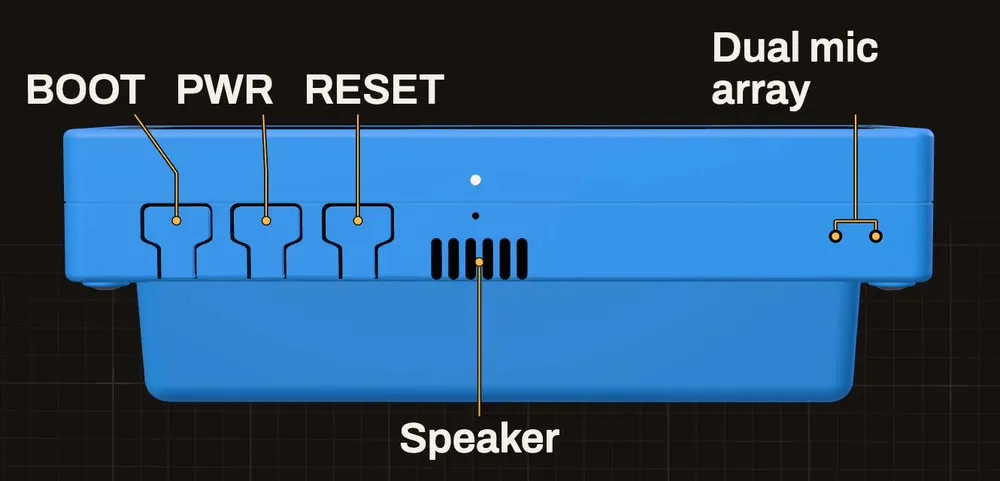
Touch is simple. Swipe left for the next page and right for the previous one, up or down for the volume. Taps work the page’s own buttons. On the back edge there are three buttons: PWR turns the screen off and on (hold 3 s on battery to power off), BOOT changes brightness (hold 5 s to forget Wi-Fi and open the setup again), and RESET restarts.
The hardware: Waveshare ESP32-S3-Touch-LCD-3.49
Phosphor runs on one board only, the Waveshare ESP32-S3-Touch-LCD-3.49. It is a long, thin ESP32 touch display with audio, microphones, a motion sensor and a clock chip already on it. Phosphor uses the motion sensor for the knock-to-play 21 and the tilting scenes.
For the specs, the V1 and V2 difference, the pitfalls and how to program it yourself, read my Waveshare ESP32-S3-Touch-LCD-3.49 review.
Open source and how it is built
Phosphor is GPL-3.0 and the code is on GitHub. The v2.0.0 release notes list what changed in 2.0.0, with the fixes: four looks, a Play menu with three games, a Tools menu, settings on the board, scenes you can touch and a daily update notice.
The installer and the release files are built by GitHub Actions on GitHub’s servers, not on anyone’s computer. Since 22 Nov 2026 every build also gets a SHA256SUMS.txt and a signed build provenance attestation. To check that a .bin came from the repository, run this with the GitHub CLI:
gh attestation verify phosphor.bin -R melihkoray/phosphorThe v2.0.0 phosphor.bin scans clean on VirusTotal (0 of 61 engines).
There is no microphone code and no cloud account. The board talks to only these:
- Open-Meteo for the weather.
- NTP servers for the time.
- The radio streams you choose.
- The installer page, once a day, to read the latest version number.
To build it yourself you need arduino-cli and the ESP32 core, and ./build.sh compiles it. The README has the exact commands.
The pictures behind the scenes in the C64-style, Amiga-style and 2600-style looks were generated with an AI image model, then cut down to each machine’s resolution, palette and color limits by a script in the repository. The 8×8 fonts are drawn for this project, with no ROM fonts copied. The looks are only in the style of those machines, and Phosphor is not affiliated with Waveshare.
Frequently asked questions
Which board does Phosphor run on?
The Waveshare ESP32-S3-Touch-LCD-3.49, a 640×172 bar display. It is the only board Phosphor is written for.
How do I install Phosphor?
Open the installer page in Chrome or Edge, connect the board with a USB-C data cable, press Install Phosphor and pick the USB JTAG/serial debug unit port. No other tools are needed.
Do I need an account or a cloud service?
No. There is no cloud account and no microphone code. The board talks to Open-Meteo for weather, NTP servers for the time and the radio streams you choose, and once a day it reads the latest version number from the installer page.
Where does the weather come from?
From Open-Meteo, which needs no key. You search for your city on the settings page, and weather and the time zone follow it.
Which radio streams does it play?
MP3 and AAC streams. You can search stations through Radio Browser on the settings page or paste your own stream URL, and test it on the device.
Is it open source and safe to flash?
It is GPL-3.0 and the code is on GitHub. The installer and release files are built by GitHub Actions with a signed build provenance attestation, and the v2.0.0 phosphor.bin scans clean on VirusTotal (0 of 61 engines).
Does installing erase the Waveshare factory demo?
Yes. Installing replaces whatever runs on the board, the factory demo included. It is not backed up and Phosphor cannot restore it.
How do I update from v1.0.x?
Install once more from the installer page over USB and leave Erase device unticked. The flash layout changed, so this step cannot happen over Wi-Fi. Your Wi-Fi, city, stations and other settings are kept.
Which languages does the board speak?
The screen texts come in English or Turkish. You choose the language in the settings on the board or on the settings page.